How to Set Up Kiosk Mode for Walk-Up Feedback
How to Set Up Kiosk Mode for Walk-Up Feedback
Use kiosk mode to turn a public survey or chain into a self-resetting feedback station for tablets, booths, front desks, and event exits.
Quick takeaways
- Kiosk mode is best for walk-up feedback where multiple people use the same device.
- You can control reset delay, idle timeout, fullscreen behavior, and public access from settings.
- The strongest kiosk setup pairs Conejo with Guided Access on iPad or Screen Pinning on Android.
Kiosk mode turns any tablet or touchscreen into a walk-up feedback station. After each response, the survey automatically resets for the next person — no manual intervention needed. It's perfect for front desks, event exits, retail counters, or conference feedback stations.
What kiosk mode does
- Auto-reset — After submission, the thank-you page counts down and redirects back to a fresh survey.
- Idle timeout — If no one interacts for a set period, the survey returns to the start automatically.
- Fullscreen prompt — A bottom bar prompts the user to enter fullscreen for a distraction-free experience.
- Wake lock — Keeps the screen on so the tablet doesn't sleep (on supported browsers).
- Back-button protection — Prevents accidental navigation away from the survey.
- Device key cycling — Each submission gets a fresh device key so response-limit policies don't block the next person.
Step 1: Enable kiosk mode in settings
Open the settings page for your survey or chain. Scroll down to the Response Controls section and toggle Kiosk Mode on.
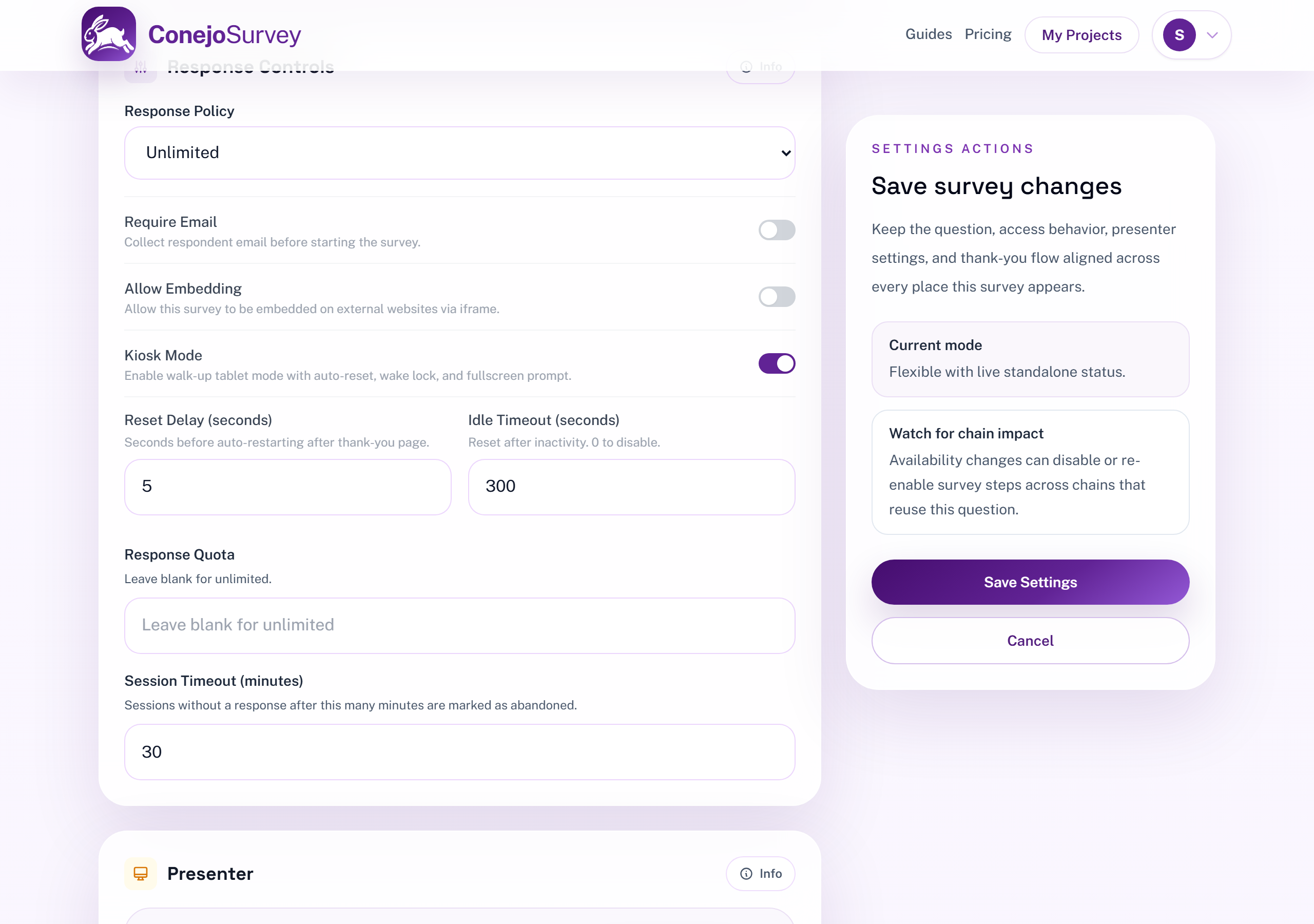
You'll see two options appear:
- Reset Delay — How many seconds the thank-you page shows before auto-restarting (default: 5 seconds).
- Idle Timeout — How many seconds of inactivity before the survey resets to the start. Set to 0 to disable (default: 300 seconds / 5 minutes).
The same settings are available for chains:
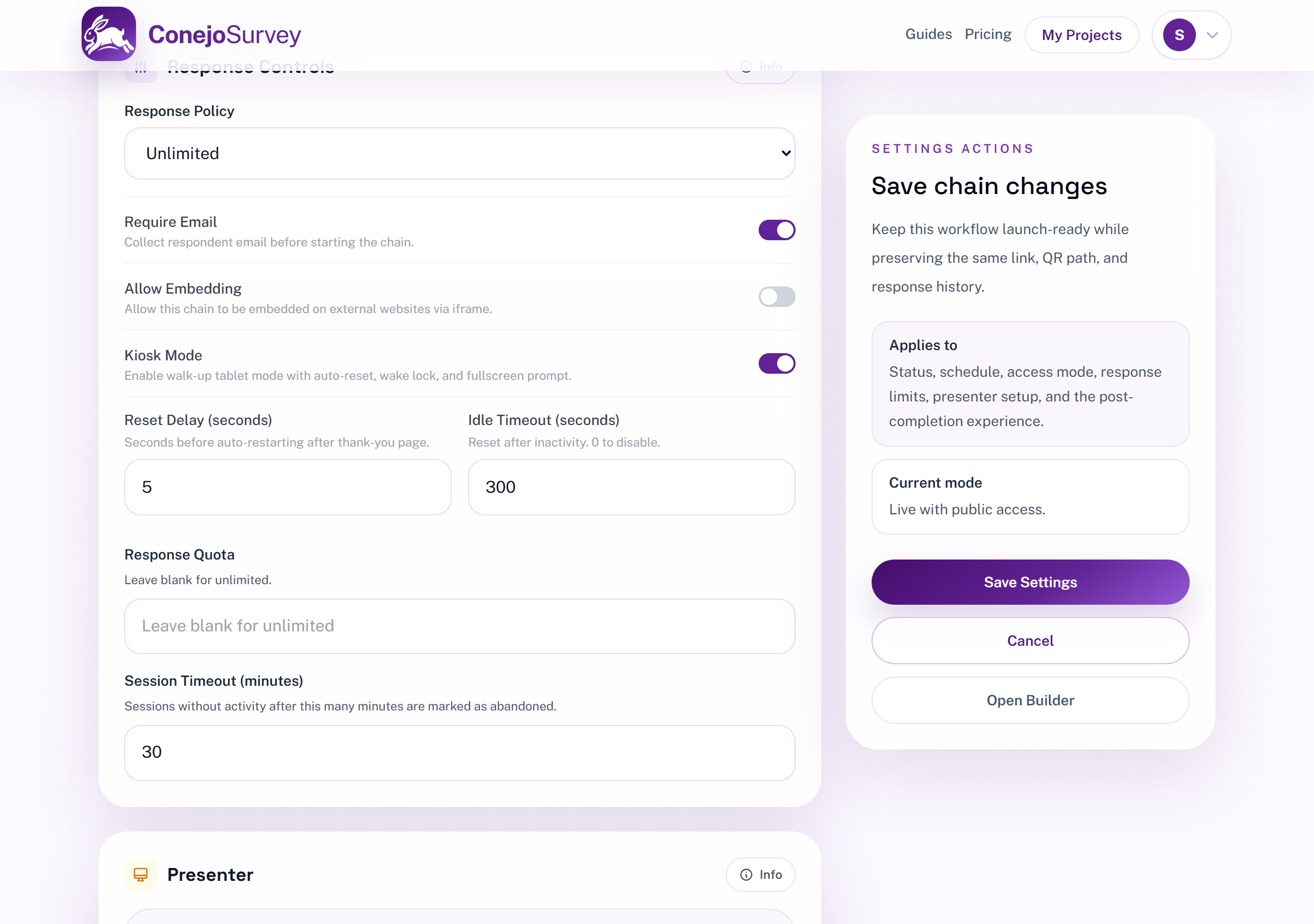
Kiosk mode is only available for public surveys and chains. If your access mode is set to Preview or Password, the kiosk toggle will be disabled.
Step 2: Copy the kiosk URL
Once kiosk mode is enabled, a Kiosk URL appears in the Distribution section of the detail page — right between the short link and the embed code.
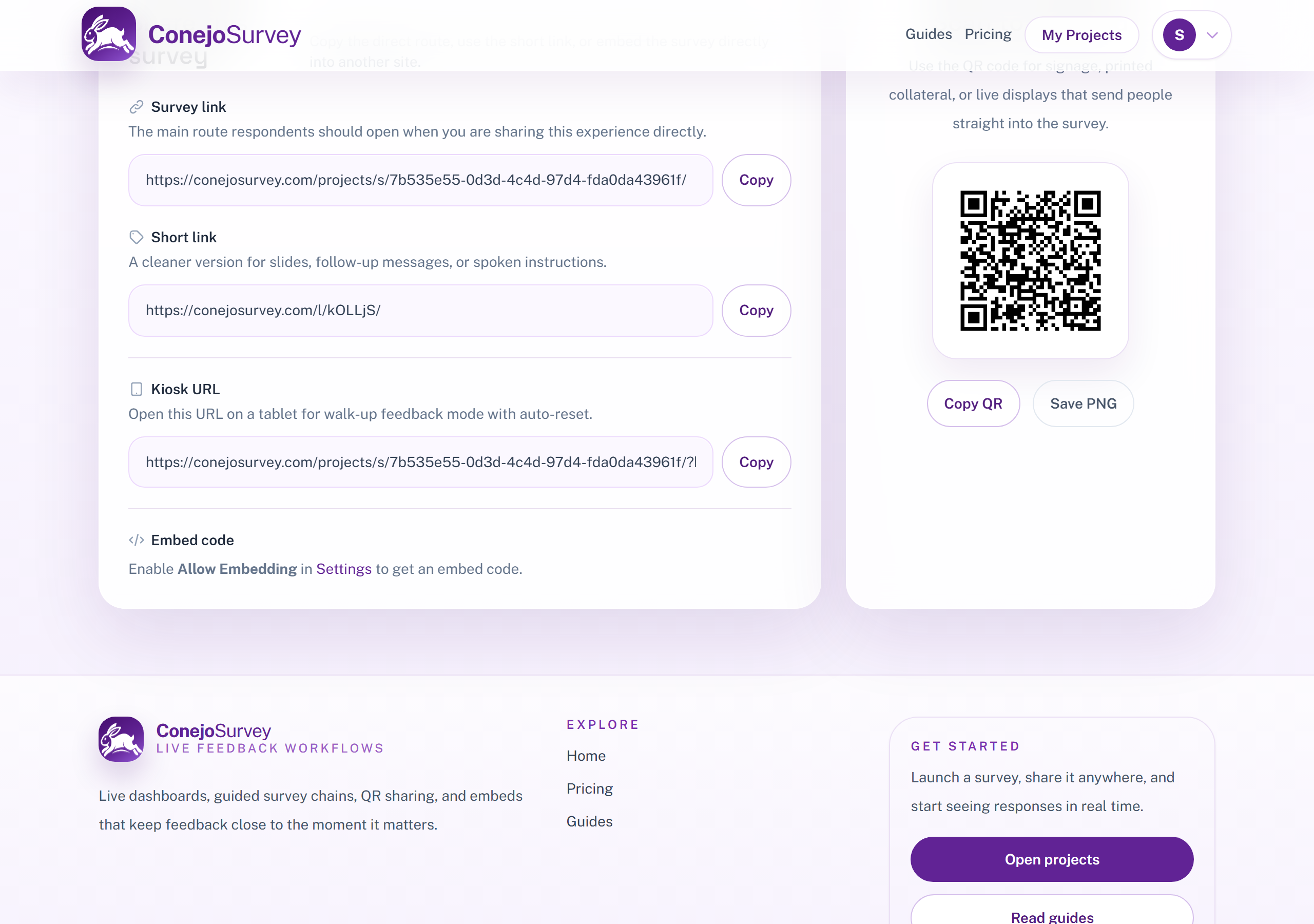
Click Copy to grab the URL. It's your normal survey link with ?kiosk=1 appended. Open it on the tablet you want to use.
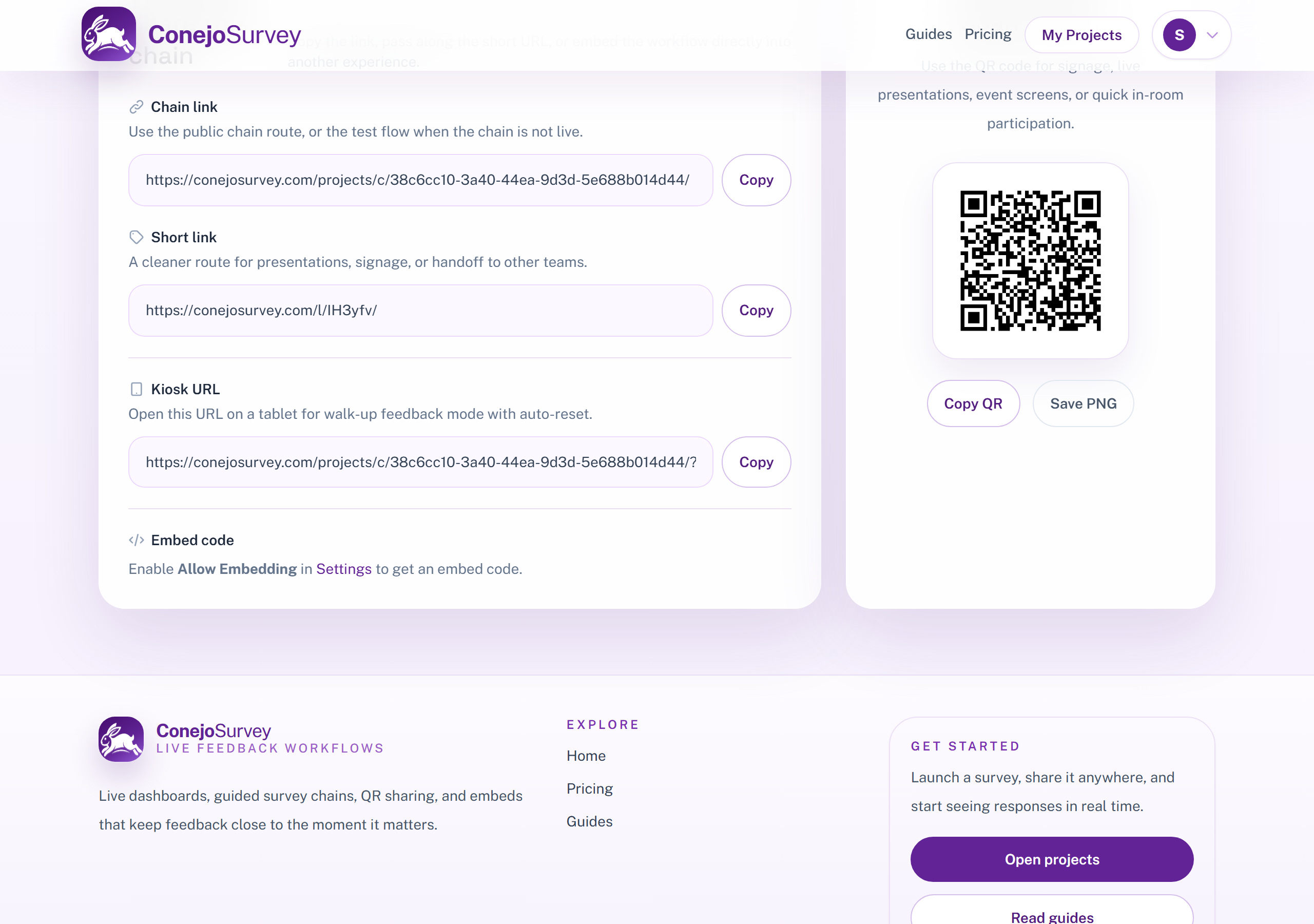
Chains have the same kiosk URL in their detail page:
Step 3: Open the kiosk on your tablet
Navigate to the kiosk URL on your tablet's browser (Safari on iPad, Chrome on Android). You'll see the survey with a fullscreen prompt at the bottom:
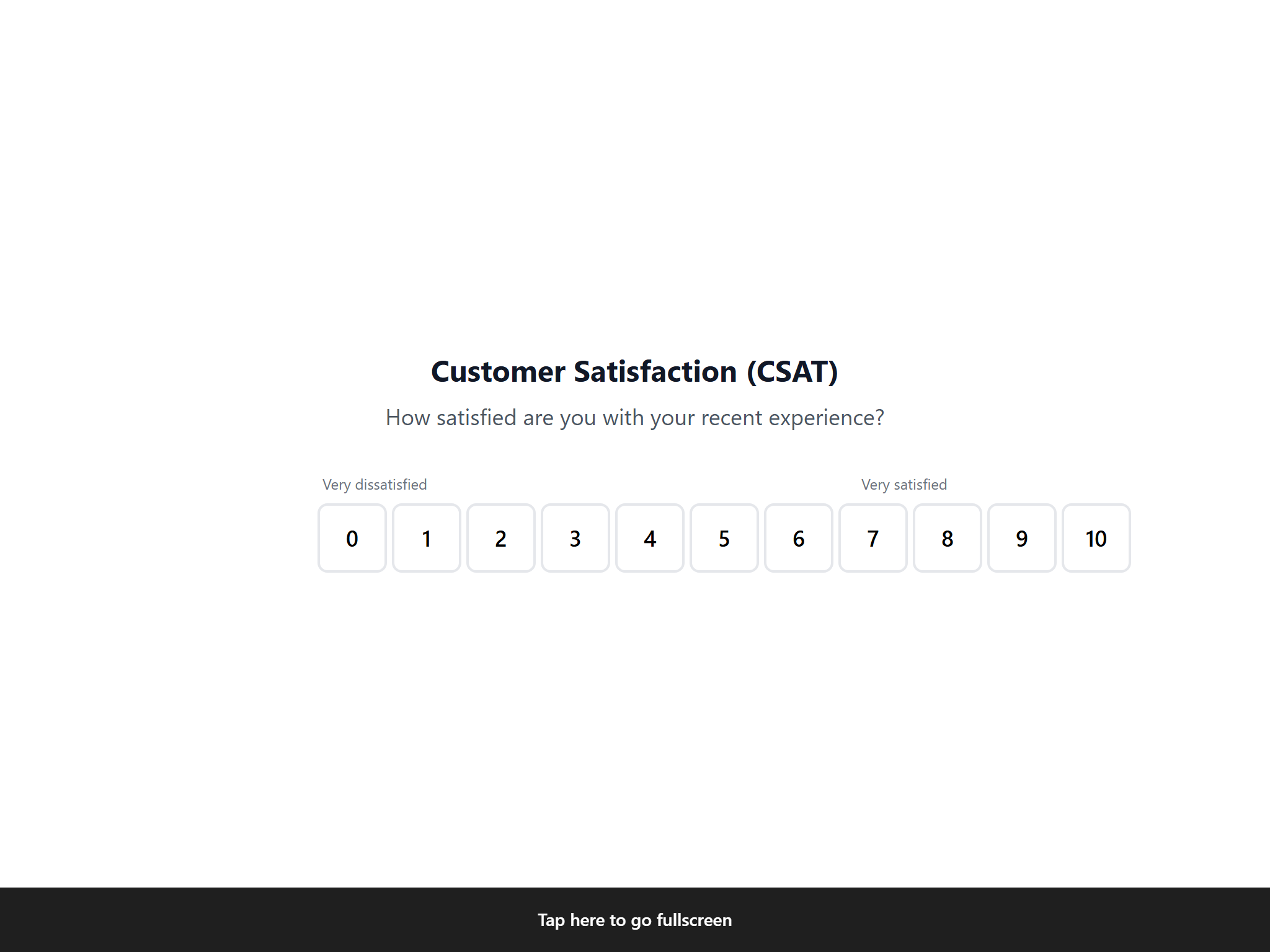
Tap the "Tap here to go fullscreen" bar to enter fullscreen mode. The bar auto-dismisses after a few seconds if not tapped.
Step 4: The auto-reset loop
After a respondent submits their answer, the thank-you page appears with a countdown:
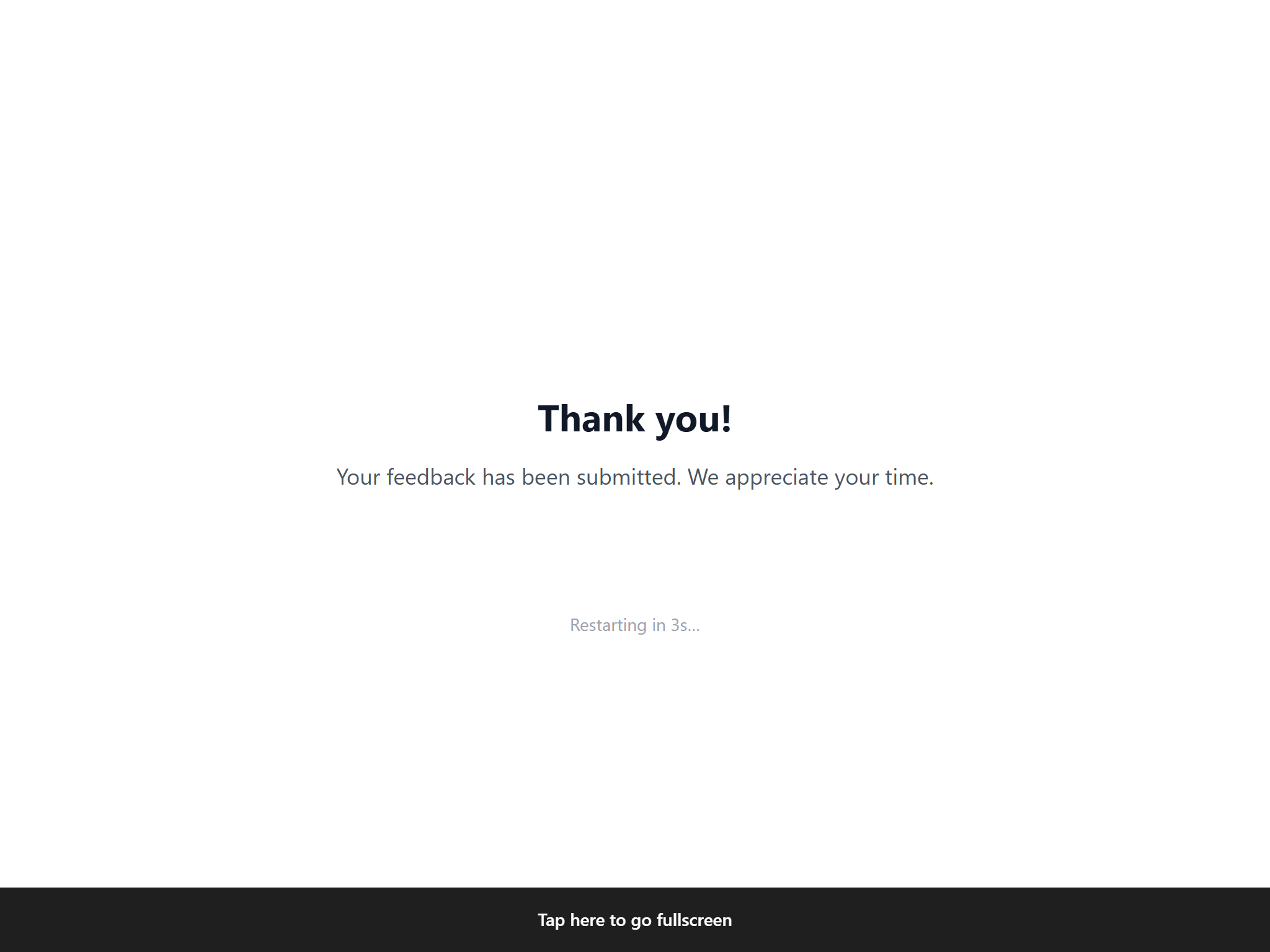
When the countdown reaches zero, the survey automatically reloads with a fresh session — ready for the next person. Touching the screen briefly pauses the countdown so the respondent can read the thank-you message.
Lock the screen on iPad (Guided Access)
To prevent people from leaving the survey, use Apple's built-in Guided Access feature:
- Open Settings → Accessibility → Guided Access and turn it on.
- Set a passcode (this is what you'll use to exit later).
- Open the kiosk URL in Safari and enter fullscreen.
- Triple-click the side button (or Home button on older iPads) to start Guided Access.
- Tap Start in the top-right corner.
The iPad is now locked to Safari. The Home button, notifications, and Control Center are all disabled. To exit, triple-click the side button again and enter your passcode.
Tip: You can also enable Guided Access from Settings → Accessibility → Accessibility Shortcut for faster triple-click access.
Lock the screen on Android (Screen Pinning)
Android has a built-in feature called Screen Pinning (also called "Pin app" on some devices):
- Open Settings → Security → Screen Pinning (or search for "pin" in Settings).
- Turn it on and enable "Ask for PIN before unpinning".
- Open Chrome and navigate to the kiosk URL.
- Tap the Recent Apps button (square icon), then tap the app icon at the top of Chrome's card and select Pin.
The tablet is now locked to Chrome. The navigation bar, notifications, and other apps are inaccessible. To unpin, hold the Back and Recent Apps buttons together, then enter your PIN.
For dedicated kiosk devices: Consider using a third-party kiosk app like Kiosk Pro (iPad) or Fully Kiosk Browser (Android) for more control over the lockdown, including hiding the address bar, disabling gestures, and auto-launching on reboot.
Best practices
- Use a short reset delay (3-5 seconds) for high-traffic locations. Use a longer delay (8-15 seconds) if respondents should read the thank-you message.
- Set an idle timeout of 2-5 minutes so partially-completed surveys don't block the next person.
- Disable "Require Email" for kiosk surveys — walk-up respondents rarely want to type their email on a shared device.
- Use the "Unlimited" response policy — kiosk mode cycles device keys automatically, but other policies might interfere.
- Keep the survey short — 1-3 questions work best for walk-up feedback. Use a chain if you need more structure.
- Plug in the tablet — kiosk mode uses wake lock to keep the screen on, which drains battery.
- Use a tablet stand or enclosure — angled stands make it easier for people to tap while standing.
Where to go next
Once the kiosk station is running, the natural next layer is the rest of the live-event workflow: a QR code setup for events and booths when people should answer on their own devices, a presenter mode live screen when the room should respond together, or a full live event feedback workflow that combines them.
FAQ
Common questions
When should I use kiosk mode instead of a normal survey link?
Use kiosk mode when many people will respond on the same device, like a tablet on a counter, booth, or event exit. It resets automatically after each response so the next person starts fresh.
Can kiosk mode work for both surveys and chains?
Yes. Conejo supports kiosk mode for public standalone surveys and public chains, with the same reset-delay and idle-timeout controls.
Do I still need to lock down the device itself?
Yes. Kiosk mode handles the Conejo experience, but Guided Access on iPad or Screen Pinning on Android is what keeps people from leaving the browser or opening other apps.
Ready to launch your own feedback workflow?
Create a survey, share it anywhere, and start collecting live responses in minutes.